
Completing registration
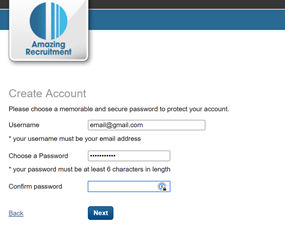
Step 1. Following the link in the welcome email your agency sent, create a password for your Engage profile
Completing tasks
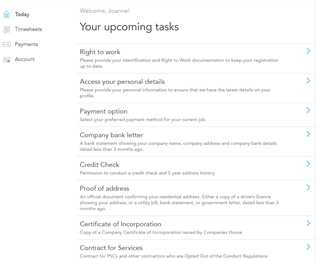
On your home page, you will see a list of tasks, which you need to select and complete (once a task is completed, it will disappear from the list)
Right to work
This is the most important task to complete since it will verify your eligibility to work in the UK
Step 1. Choose your country and citizenship:

Step 2. Choose what document you would like to upload:
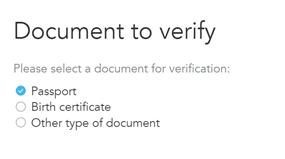
Below we will go through the steps of uploading a passport:
Step 3. Select 'Passport'
Step 4. Hit 'Start verification'
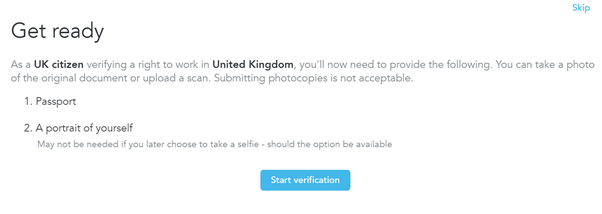
Step 5. You will be prompted to upload a digital photo of your passport and yourself (selfie)
Step 6. You will be notified once the verification has been completed
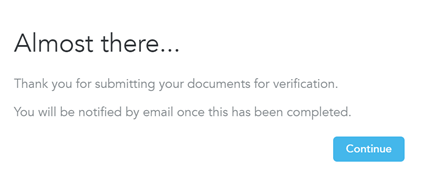
If you choose to upload Biometric residence card, please make sure you enter the details as requested and upload a clear photo/scan
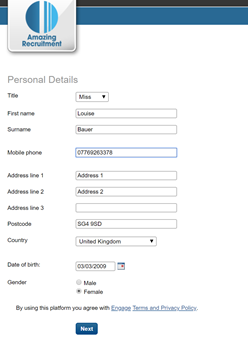
Accessing your personal details
Please make sure you add/edit all the details before proceeding:
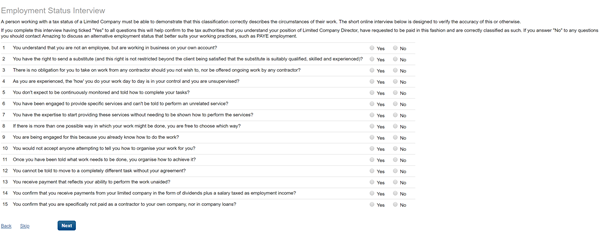
Complete an Employment Status Interview (only for workers with Ltd companies)
Payment option
Your agency would have set your engagement type to one of the following:
- An employment business (umbrella)
- Self-employed via worker’s limited company
- PAYE (Pay As You Earn)
We would look into each of these below:
Step 1. Add your business details (if your details exist on Engage, you can select from your existing business)

Step 2. Confirm your business details
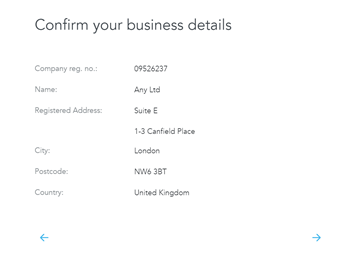
Step 2.1. Or register a new business

Step 2.2. Enter your company registration number (this is verified by Companies House and begins with a zero)
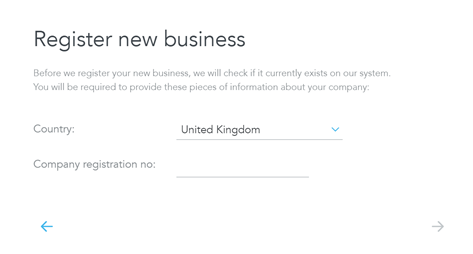
Step 2.3. Add VAT registration number

Please note
Once VAT is added we verify it by comparing it against the European Commission, if the details (name and/or address) have any discrepancies with the details on Companies house, it will not be verified.
Step 2.4. Enter bank details (international bank details are also accepted)
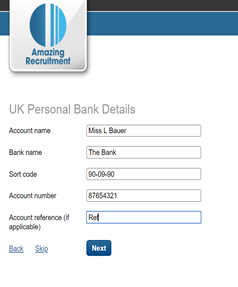
Step 1. Enter your bank details
Step 2. Enter your National Insurance number.
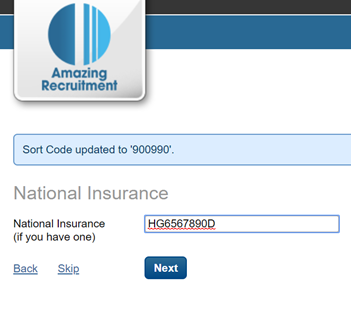
Documents
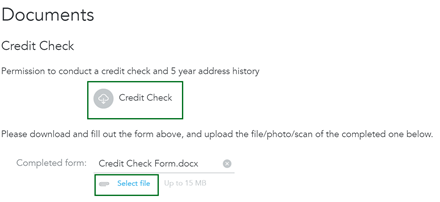
You would need to upload all the required documents one-by-one. To do this click on 'Select file' and choose a file from your device to upload:
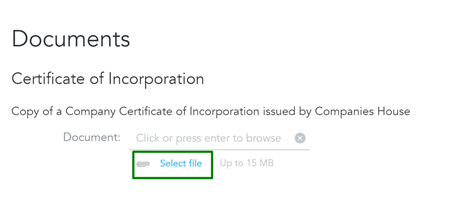
If you are required to 'Sign and upload a document' (for example, if you need to submit Opt-out notification, Self-billing agreement, Credit check - you have to download the document, print it out, sign and upload it, once complete):
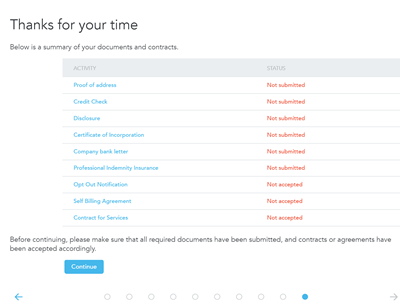
You will be provided with a summary on the last page:
Please make sure not to send any documents to Engage support directly, instead get in touch with your agency