
Advanced timesheet reporting
Who can access advanced timesheet reporting?
Any role at the Agency, whilst anyone but the Timesheet Approver role can access advanced timesheet reporting.(you can find out more about roles and privileges here)
Step 1. Log in to Engage portal
Step 2. Navigate to the 'Timesheets' section
Step 3. Find the timesheet in question, click on it
Step 4. Timesheet properties (to be entered by the worker) can be amended by going to 'Timesheet settings' from the 3-line menu. The options are:
- Fatigue management - requires workers to report the time in which they left and returned home for each day they work (this can be used to monitor the total active time for high-risk industries)
- Shift records - requires workers to report the time worked when on a day rate contracts
- Activity reference - requires workers to provide a code or description of the work they have completed for each timesheet entry
Step 5. When done, click 'Save' to keep your changes
PO consumption report
- Your PO consumption report can be filtered by the client, vendor, active time period, site location and the PO number
- Hovering over your bar graph will highlight the further depth of the report: you can see the amount which has been spent, the remaining budget and how much you have gone over the budget by
Site report
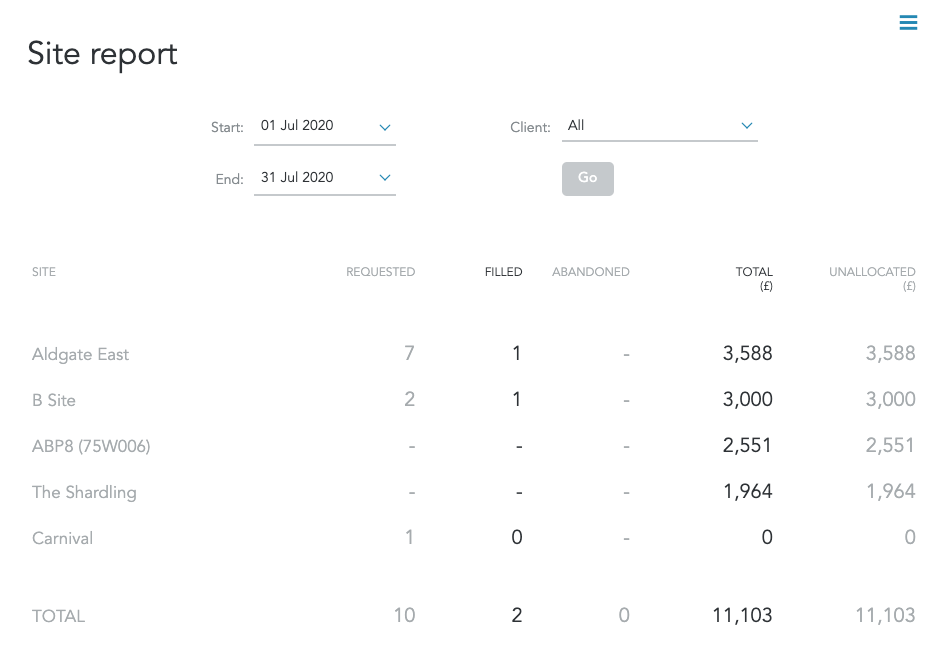
Site report provides you with a breakdown of the requests for the site (whether they have been filled/ abandoned) and overall costs:
Margin Report
Margin report lets you easily identify the differences between your sales and profits, which in return would show your companies financial position. Our margin report provides the following information:
- Timesheet information
- ID
- End Date
- Worker
- Site/ Client
- Placement ID
- When timesheet was approved on and by whom
- ERNI/ ER Pension/ Levy
- Cost/ Charge
- Margin
- Invoice creation date
- Consultants and their commissions
Please note!
This report is based on timesheets that have been invoiced meaning if any invoices are yet to be raised those timesheets won't be included
Worker Engagement Report
Please note!
This can be accessed by every role at the agency but the Consultant!
This report would show you all worker details including:
- Workers personal details
- External ID (if any)
- Bank details
- Engagement details (PAYE/ Limited company)
- OK/ Not OK to Pay status and missing documents (if any)
Please follow the steps below to generate the report:
Step 1. Navigate to 'Workers' section
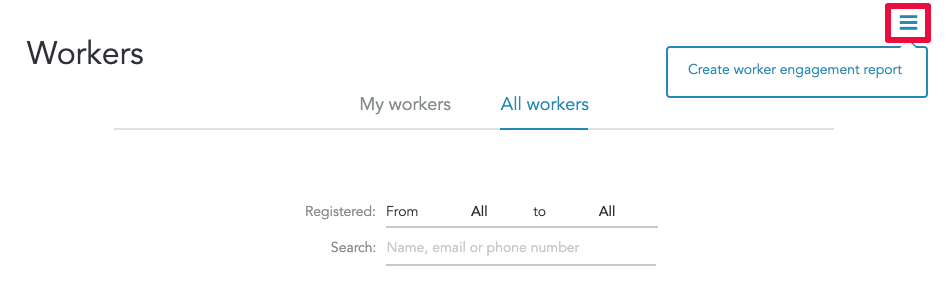
Step 2. Click on 'Create worker engagement report' from the 3-line menu in the top right corner
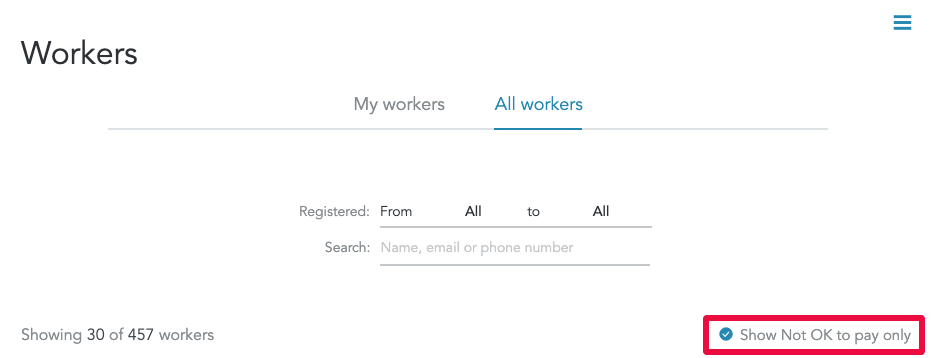
Filtering workers by the 'Not OK to pay' status would allow you to get a report with those workers who have missing documentation/tasks to complete
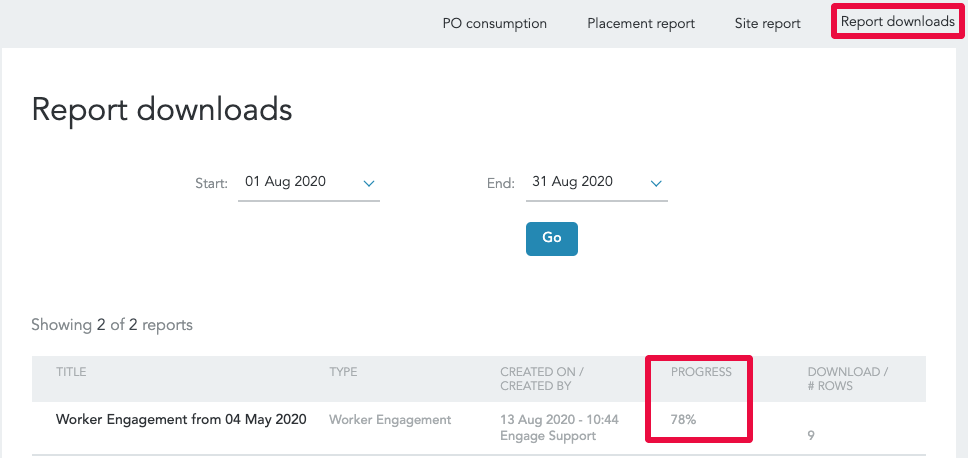
You can monitor the progress of your report download in the 'Reports' section
Vacancy Download
Please note!
This can be done by any role at the agency but only the Manager and Admin roles at the End-Hirer.
Vacancy export would provide you with the following information:
- Vacancy ID
- Client, site
- Position details
- Type of the vacancy (temporary/ permanent)
- Reason for hire
- Start/ End dates
- Working days/ hours
- Pay/ Charge/ Markup
- The number of workers needed/ placed
- Hiring manager details
- Vacancy approvers
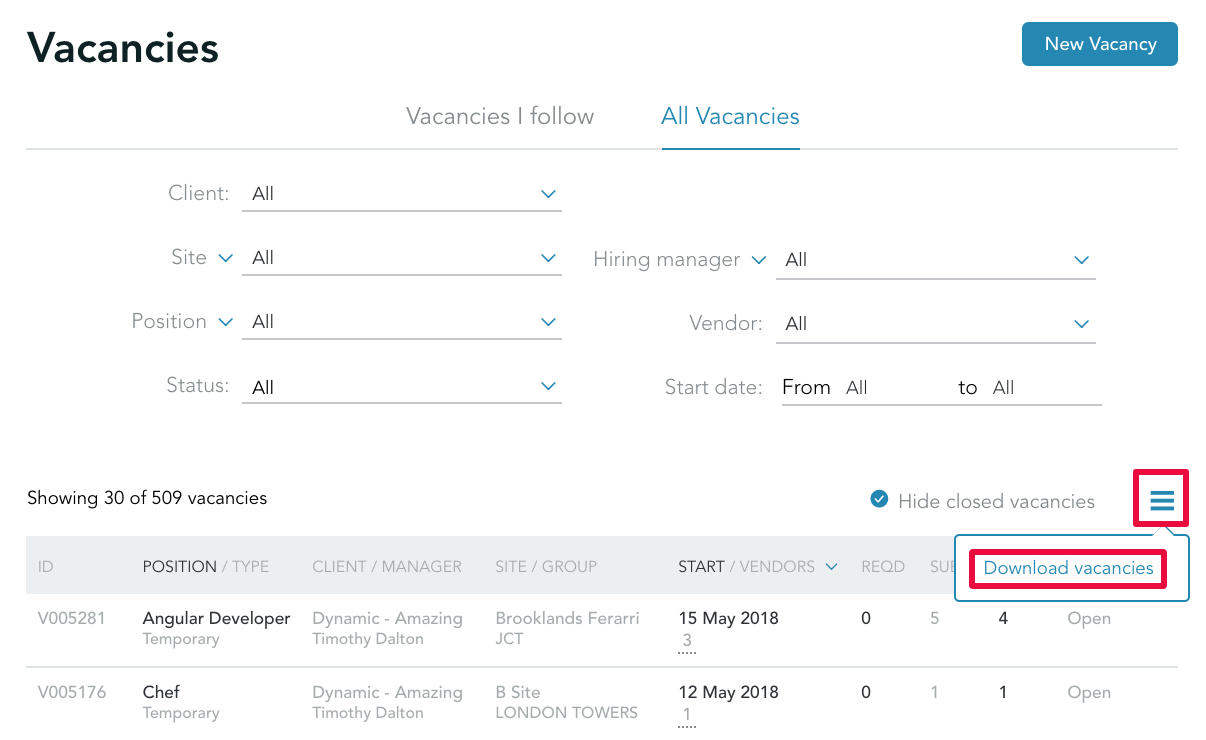
Step 1. Navigate to 'Jobs' section
Step 2. Click on 'Vacancies'
Step 3. Click on 'Download vacancies' from the 3-line menu above the vacancy list
Timesheet Download
Downloading timesheets would give you a list of timesheets depending on your chosen status.
Step 1. Navigate to 'Timesheets'
Step 2. Filter the timesheets you would like to download
Step 3. Click on 'Download all/ approved/ submitted/ cancelled timesheets' from the 3-line menu in the top right corner
CIS Report
CIS report is only available for the agencies that use supplier invoicing and pay workers under the Construction Industry Scheme.