
In this article, we will show you how to ensure your location services are on and your device is ready to be used with ENGAGE app.
Important!
We strongly recommend downloading Chrome browser to have the best experience using ENGAGE platform.
Please follow these links to get the app on your device: for Android and for iPhone.
Turning location services ON system-wide
To use ENGAGE you will need to ensure your location services are ON system-wide (you can select what apps have access to it later).
Please follow the steps below depending on the device you have:
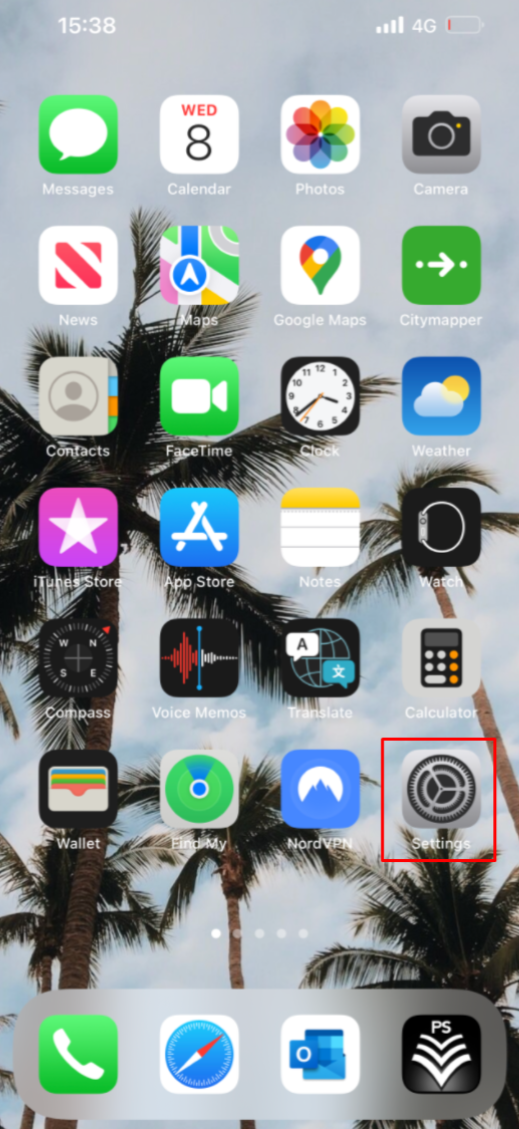
Step 1. Go to your 'Settings' application
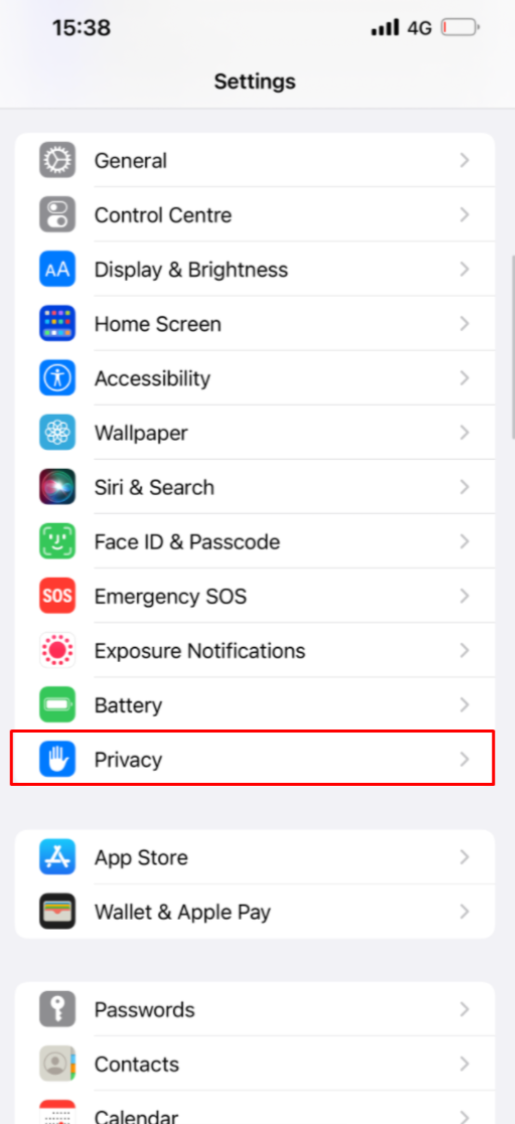
Step 2. Search for 'Privacy' by scrolling through the options.
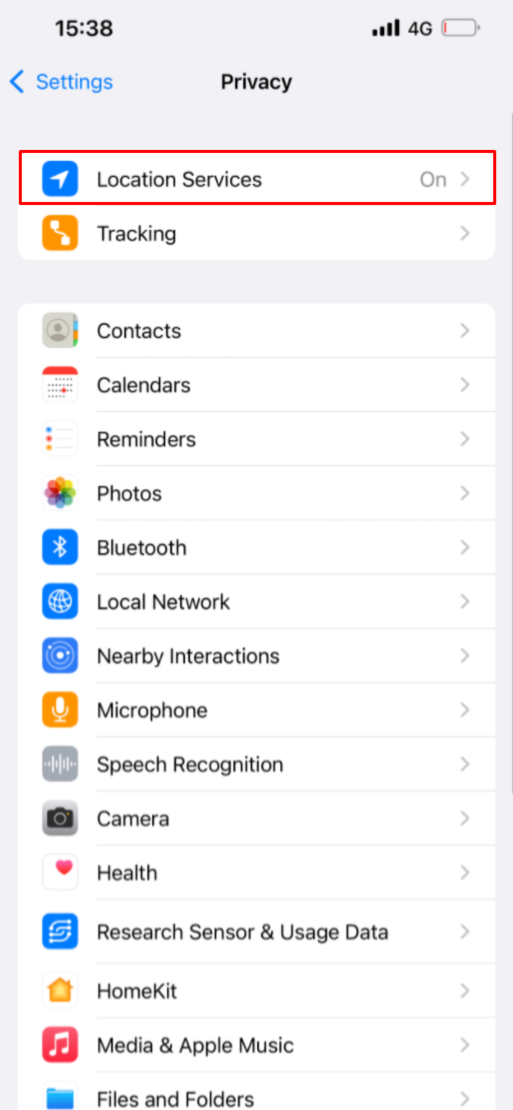
Step 3. At the top of the page select 'Locations Services'
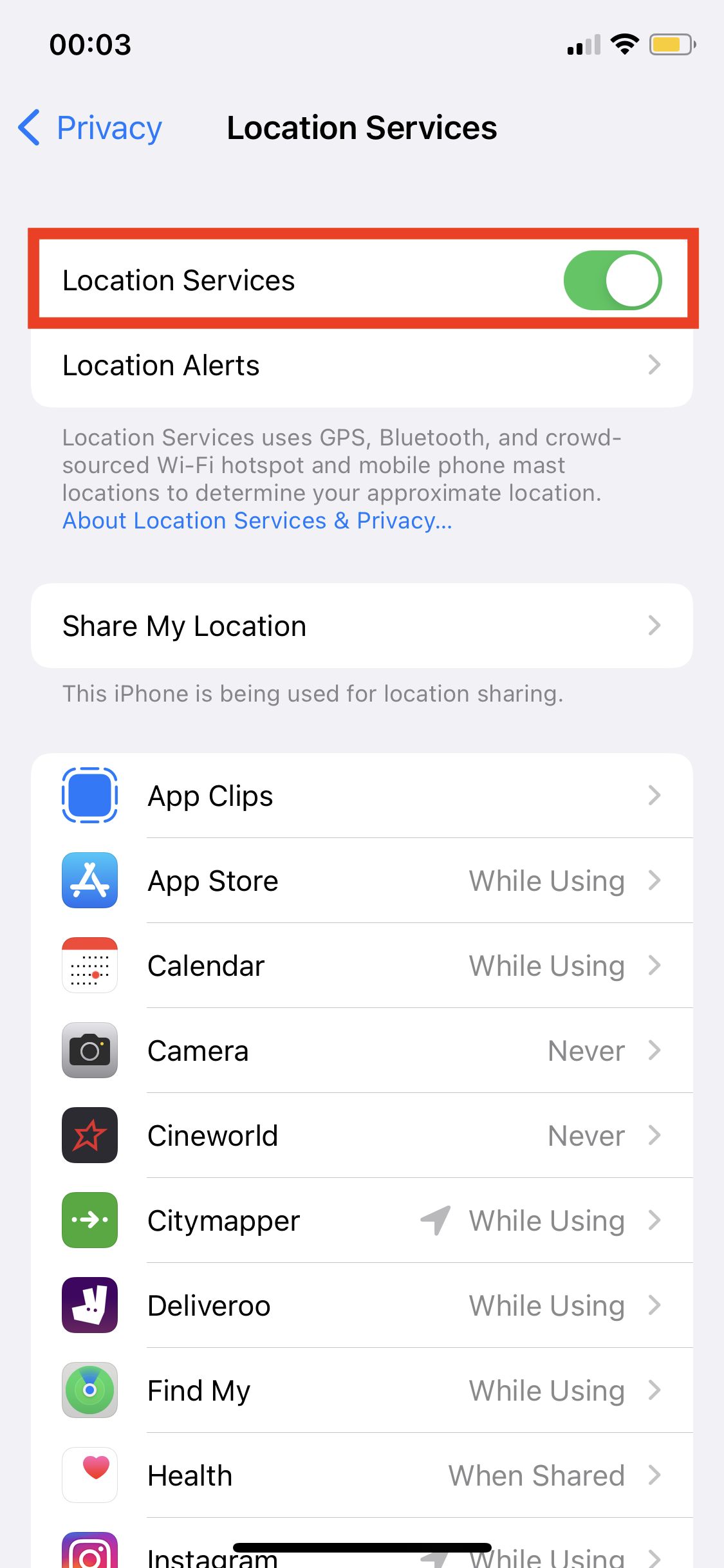
Step 4. Make sure they are 'On'
Step 1. Navigate to 'Settings' application on your phone
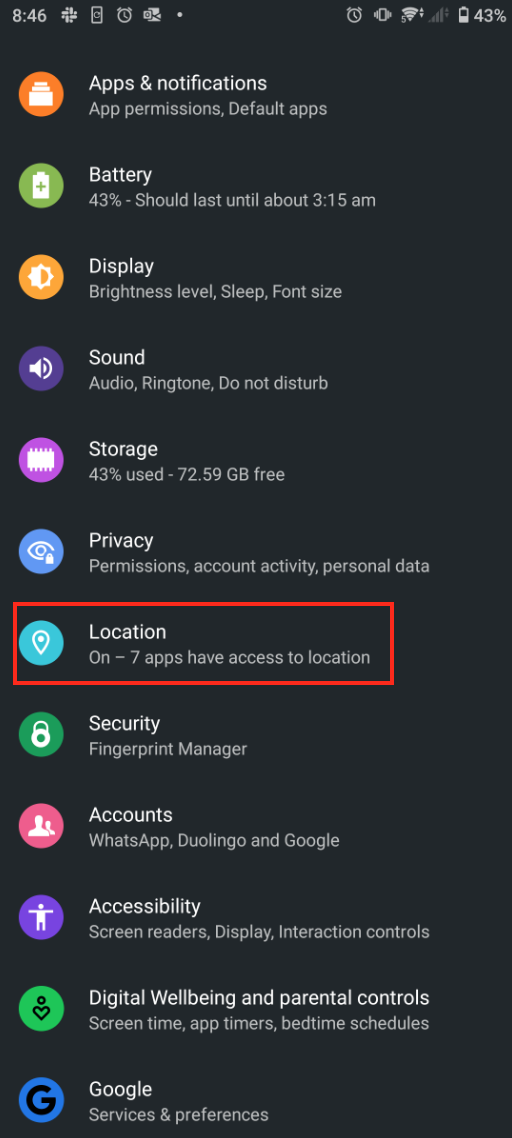
Step 2. Make sure 'Use location' is ON
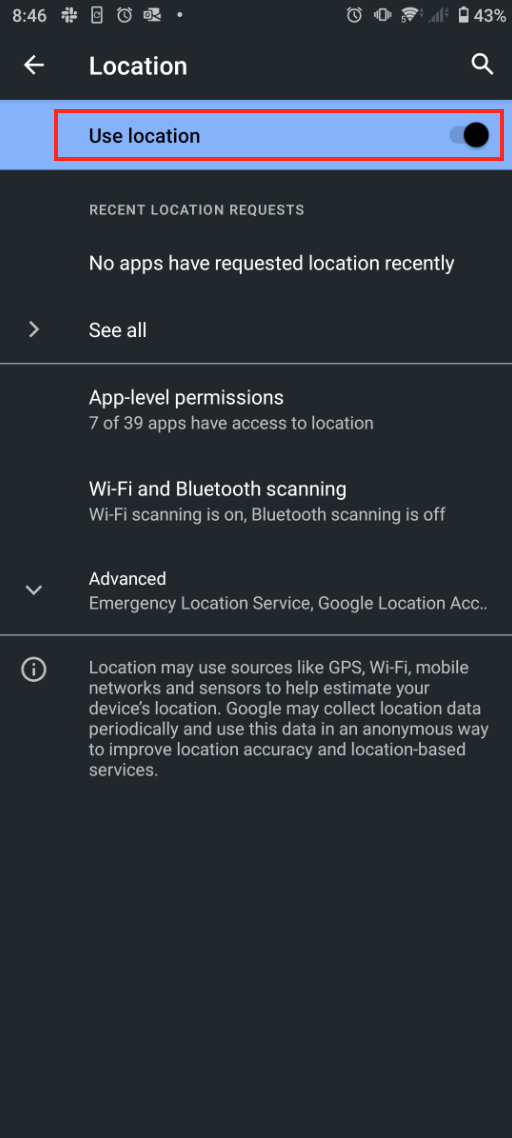
Turning location services ON per application
Below are guides for both Android phones and iPhones on how to turn on location for a specific app (for example, your browser), please expand the relevant section.
Step 1. Go to your 'Settings' application
Step 2. Search for 'Privacy' by scrolling through the options.
Step 3. At the top of the page select 'Locations Services'
Step 4. Navigate down the list to 'Safari Websites'
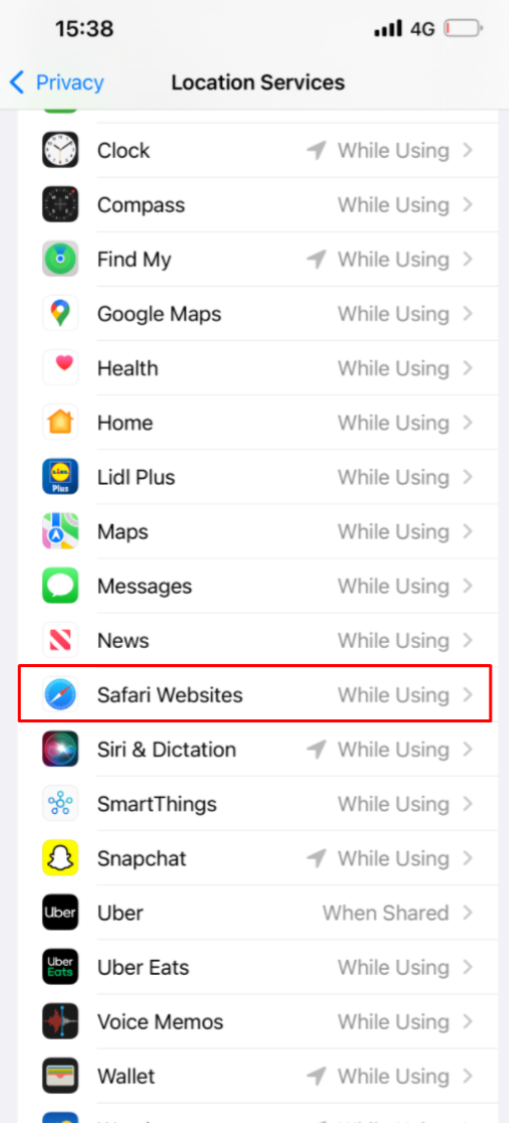
Step 5. Make sure you have selected 'While Using the App' and have turned on 'Precise Location'
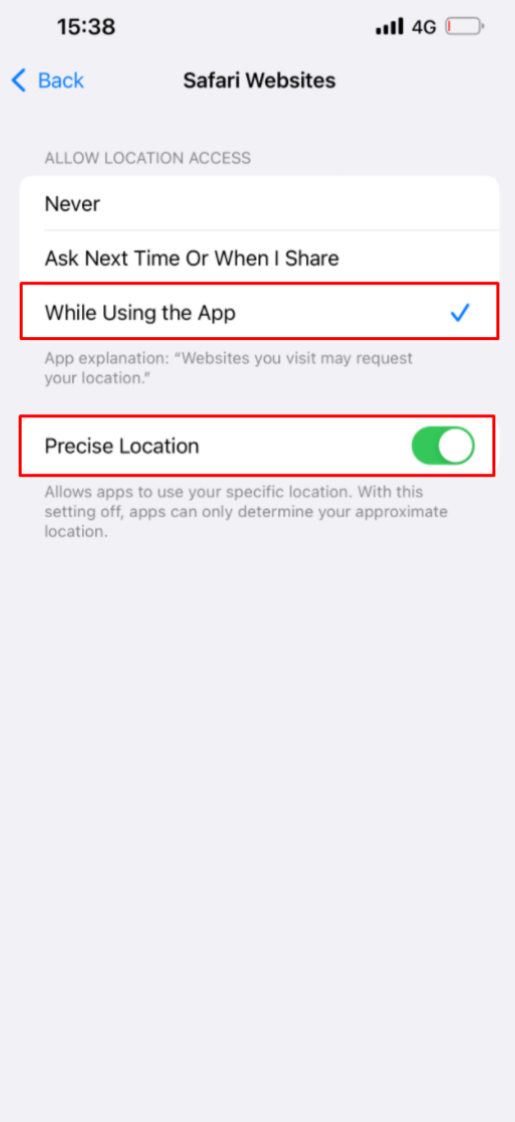
'While Using the App' option means you only allows access to Location Services when the app or one of its features is visible on screen. If an app is set to While Using the App, you may see your status bar turn blue with a message stating that an app is actively using your location.
Step 1. Navigate to 'Settings' application on your phone
Step 2. Click on 'App-level permissions'
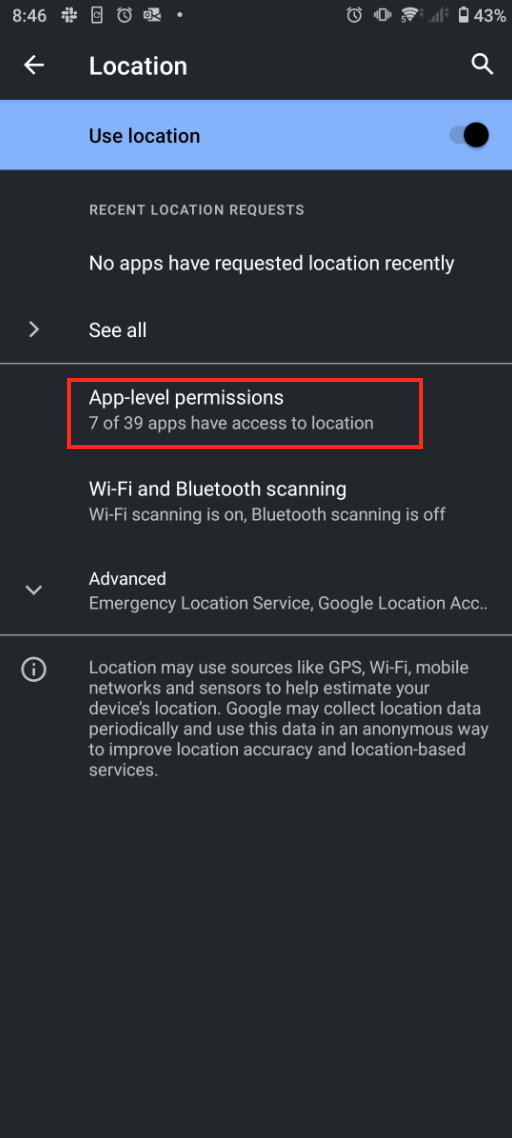
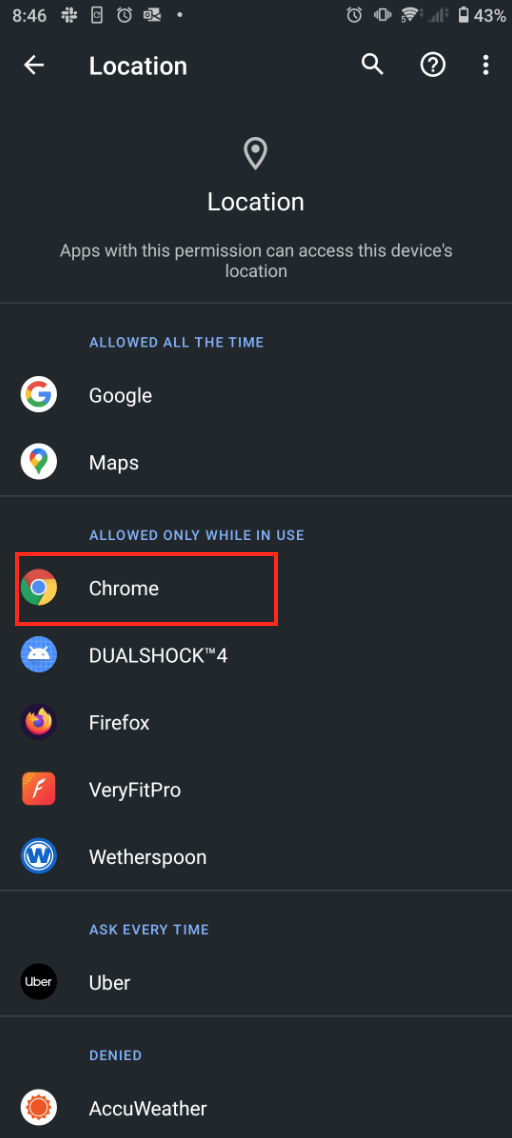
Step 3. Here you will see locations settings around your apps. In order for the ENGAGE app to work correctly, you have to make sure Chrome is set to 'Allowed only while in use' or 'Allowed all the time'.
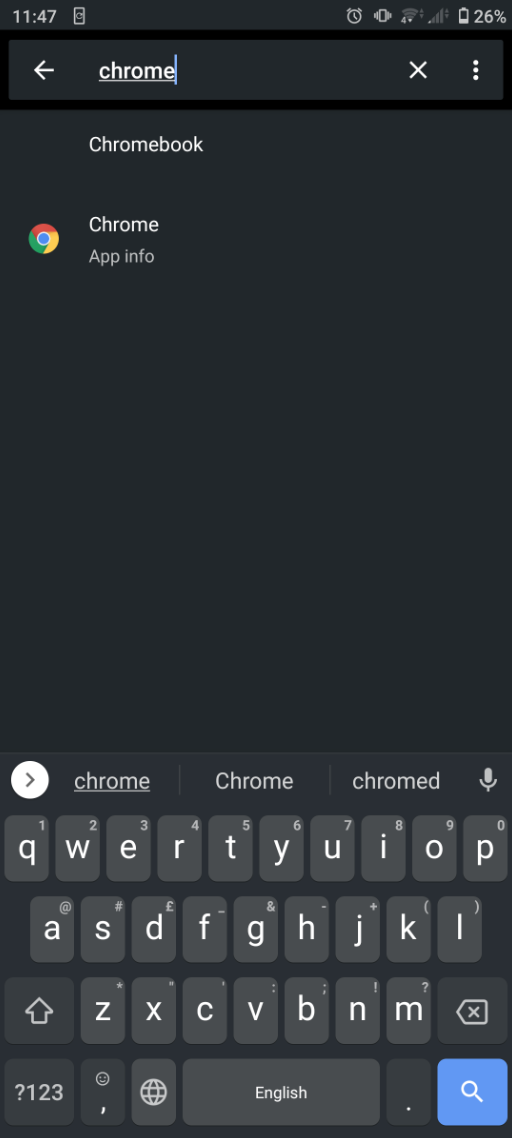
Step 3.1. If you can't find Chrome straight away, you can search for it using the magnifying glass in the top right corner and type 'Chrome'
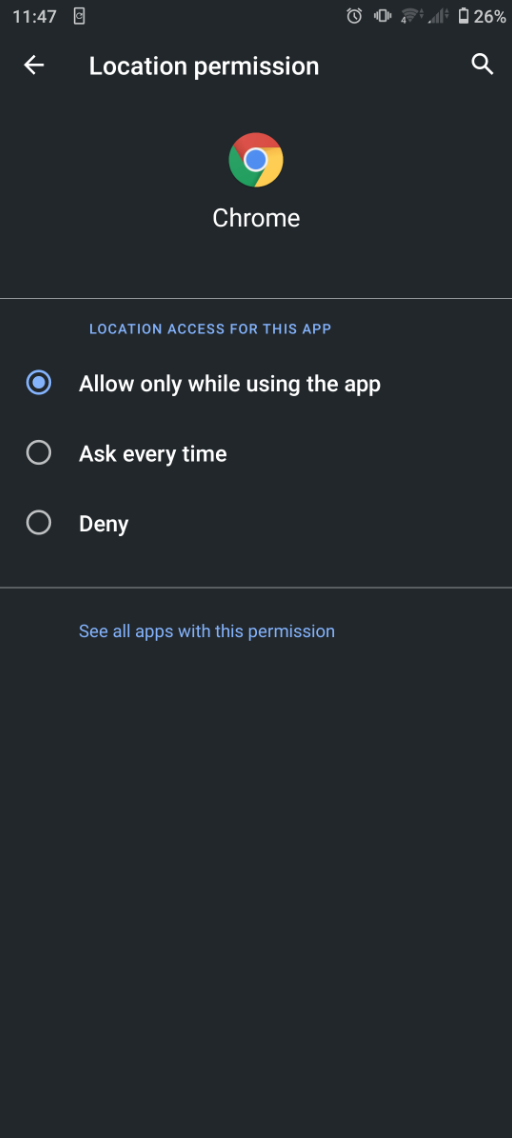
Step 3.2. Select the required option
Ways to improve GPS Accuracy
Below are the ways you can improve the GPS accuracy on your device:
Turn on Wi-Fi
Wi-Fi radio signals are a great way to determine where a device is geographically located. Accuracy is improved as the device (with Wi-Fi turned on) measures the signal strength of all nearby Wi-Fi networks that it detects.
This information is factored in using more than one method to collect data to determine how close/far the device is from these wireless access points.
All a device needs to do is detect various Wi-Fi hotspots in its range, and then its location accuracy improves because the geographical location of millions of Wi-Fi access points can be obtained from a centralised database.
- Open your device's ‘Settings’
- Tap ‘Network and Internet’.
- Tap a listed network. Networks that require a password have a lock.
- From your Home screen, go to Settings > Wi-Fi.
- Turn on Wi-Fi. Your device will automatically search for available Wi-Fi networks.
- Tap the name of the Wi-Fi network that you want to join (before you can join the network, you may be asked to enter the network's password or agree to terms and conditions)
Tip for both Android and iOS devices
After you connect, the network is 'Saved'. When your phone is near and Wi-Fi is on, your phone automatically connects to this network.
Restart your device
When you encounter a problem with your GPS, it can be anything from the GPS not working at all or the GPS showing a wrong location.
Before rebooting your Android device you should try toggling the GPS on/off.
You can turn on/off the GPS from the notifications shade of your Android phone:
- Pull down the notifications shade and look for the GPS icon.
- Switch it off and wait for at least 5 seconds.
- Switch on the GPS and allow it to check for the location again.
- Check if the problem you were facing has been fixed.
If the above has not resolved the issue you should reboot your android device in general restart helps the phone refresh its settings and is most likely to fix some of the errors.
You can do this by:
- Holding down the power button for a few seconds (located normally on the side of the device).
- Wait a few seconds and it should either give you an option to press 'Turn off device' or 'Restart'.
Before a general reboot of your iOS device you should try refreshing the Location Services. For any app to use GPS, location permissions must be granted. Permissions won't be granted if location services are turned off. Double-check this.
To do this:
- Open Settings >Privacy > Location Services
- Tap Location Services off if it's on.
- Wait a couple of seconds to re-enable location services.
The app that's using GPS (for example, Safari) may have succumbed to a software glitch. You can clear it by forcing a restart.
You can do this by doing the following:
- Press one of the Volume buttons along with the Power button until the shut-down slider appears.
- Hold the Side Button until your iPhone switches back on.
Recalibrate your device
- Google Maps uses your Android device’s magnetometer to determine which direction you’re heading. To improve your device’s location accuracy, you need to calibrate your compass in the Google Maps app.
- Your device needs a magnetometer for the compass function to work, and almost all Android smartphones have these included.
- Before you calibrate your compass, check to if your device’s direction is being accurately reported in the Google Maps app.
To re-calibrate your Android device:
- Open the Google Maps app then look for the blue circular icon showing your location. If it isn’t visible, press the circular bullseye icon in the bottom-right corner.
- This will bring up your location into view. Your device’s direction is shown as a blue flashlight-style beam around your circular location icon.
- If Google Maps doesn’t calibrate your compass automatically, you must perform a manual calibration. Open the Google Maps app, making sure that your blue circular device location icon is in view.
- Tap on the location icon to bring up more information about your location. At the bottom, tap the “Calibrate Compass” button.
- This will bring up the compass calibration screen. Your current compass accuracy should be displayed at the bottom as either low, medium, or high.
- While holding your device and following the method shown on-screen, move your phone around three times, tracing a figure eight in the process.
In iOS devices there is a privacy setting to allow your compass to use location services to help calibrate your device’s compass. By default, this setting is disabled. Enabling this feature is highly recommended for good compass accuracy.
You can do this by:
- Open the ‘Settings’ app
- Tap ‘Privacy’
- Tap ‘Location Services’
- Tap ‘System Services’
- Enable ‘Compass Calibration’.