
Payment allocation helps you monitor the funds you receive from the clients. By doing this on time you can easily track what invoices have been paid in full and what payments were withheld or missed.
Who can do it?
Only administrators at the end-hirers can allocate payments while finance admin, finance controller, and administrators can action it at the agencies (you can find out more about roles and privileges here)
Step 1. Log in to Engage portal
Step 2. Navigate to 'Finance' and 'Invoices'
Step 3. Select a business to view issued invoices (take note of the Invoice nr as you will need it later)
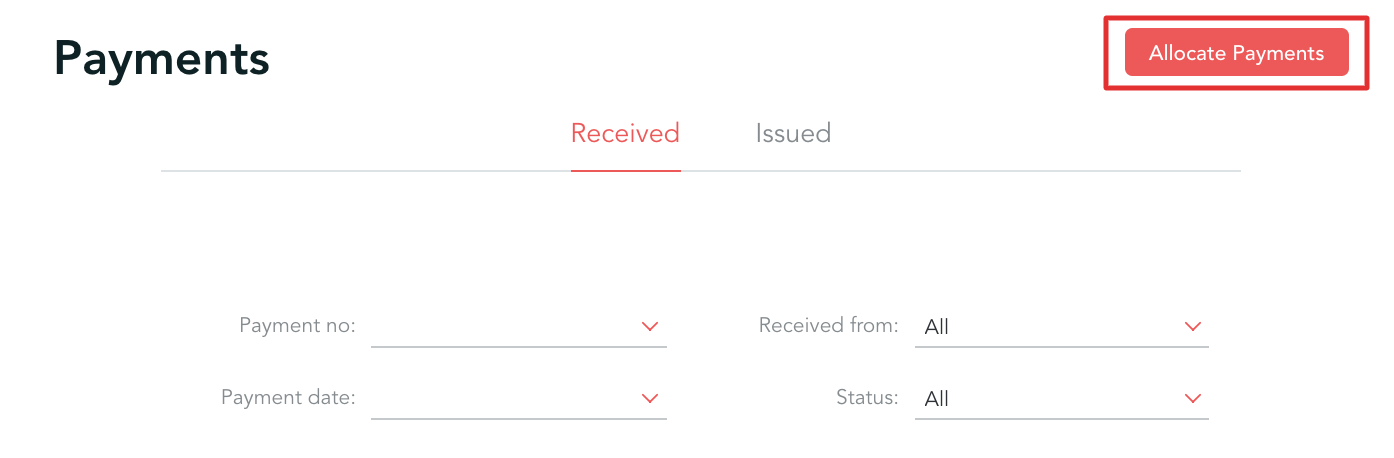
Step 4. Click 'Payments' and select 'Allocate payments' from the top-right corner
Step 5. Select the client the payment has been received from, enter the value of the payment, remittance number and adjust the date if needed
Step 6. Select the invoice you are allocating payment for (this should match with the Invoice nr on the summary page)
Step 7. Once done, click 'Save allocation' followed by 'Allocate payment'
Please note!
When allocating payments without selecting an invoice number - your allocation will be saved as an unallocated draft