
Who can create supplier payments?
Team members with the role of Finance Admin, Finance Controller or Administrator at the Agency can create supplier payments while only administrators at End-Hirers have access to this feature (you can find out more about roles and privileges here)
Step 1. Log in to Engage portal
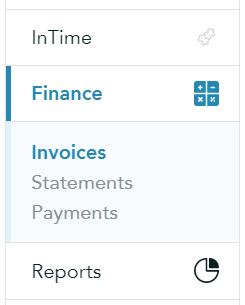
Step 2. Navigate to 'Invoices' in the 'Finance' section
Step 3. Select an invoice you wish to pay, check if details are correct and click on 'Pay invoices' from the 3-line menu
Multiple invoices
If multiple invoices are owed to a single business, you can review and edit which invoices you wish to pay by selecting the business and choosing specific invoices
Step 4. Choose a payment method (BACS or FPS)
Step 5. Check processing date
Step 6. Once done, click on 'Create payment'
Step 7. Request approval for the payment
Step 8. Once approved, you can then export the file to your device
Step 9. Once the payment is sent, to finalise it, click 'Mark as processed' from the 3-line menu