
In this article, we will explain how you can amend the configuration to either enable or disable expense submission.
Who can enable Expenses?
At agencies, all users have access to this feature, whilst at end-hirers, only consultants will not have access to it (you can find out more about roles and privileges here)
Client Configuration
If set to true at the client configuration level, all timesheets for all new placements for all new positions for this client configuration will allow the creation of expense
Step 1. Log in to Engage portal.
Step 2. Navigate to the 'Businesses' section.
Step 3. Find the business in question and select.
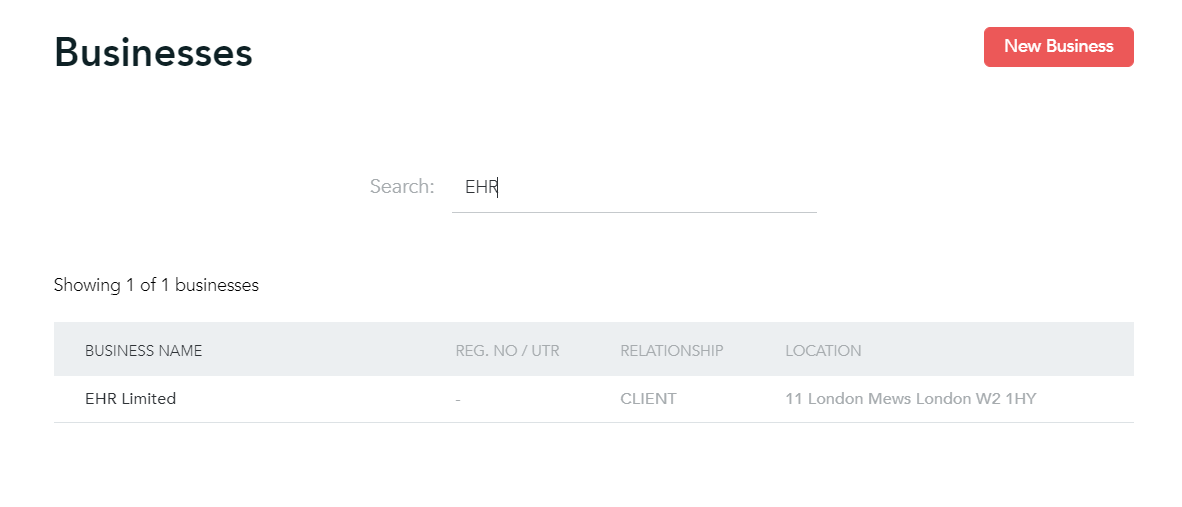
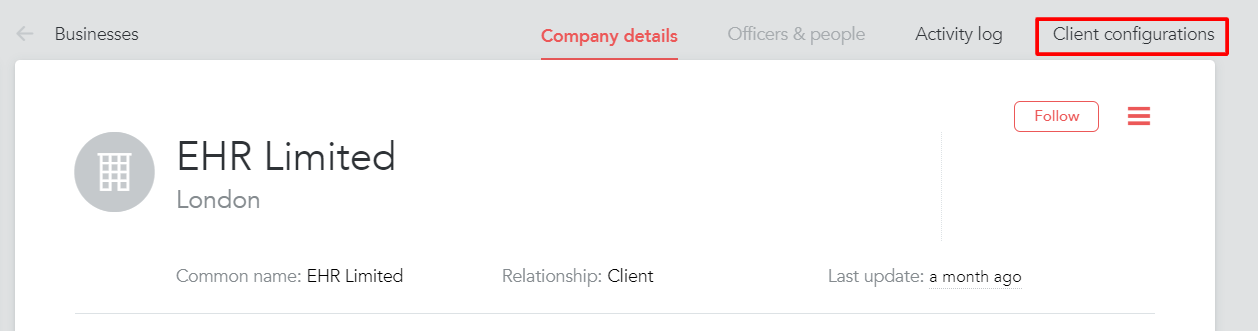
Step 4. Go to 'Client configurations'.
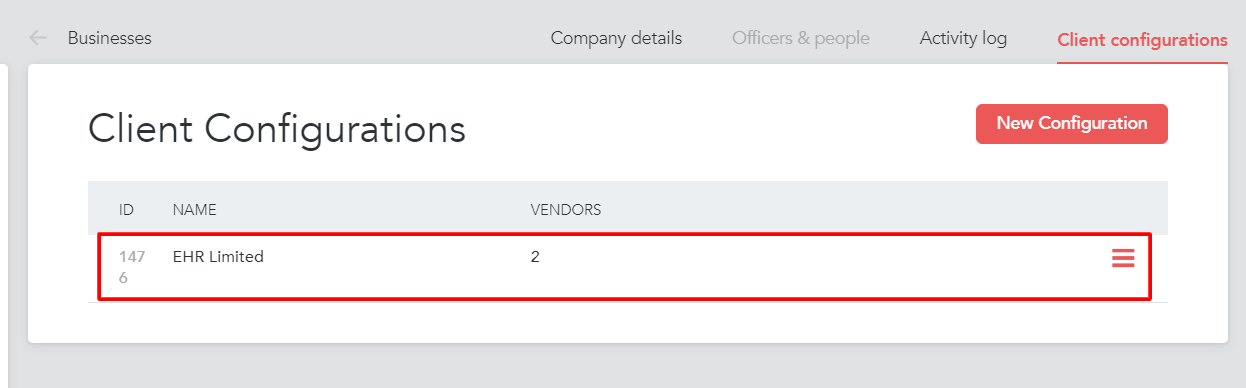
Step 5. Click on the client.
Step 6. Click 'Timesheets' in the top right corner.
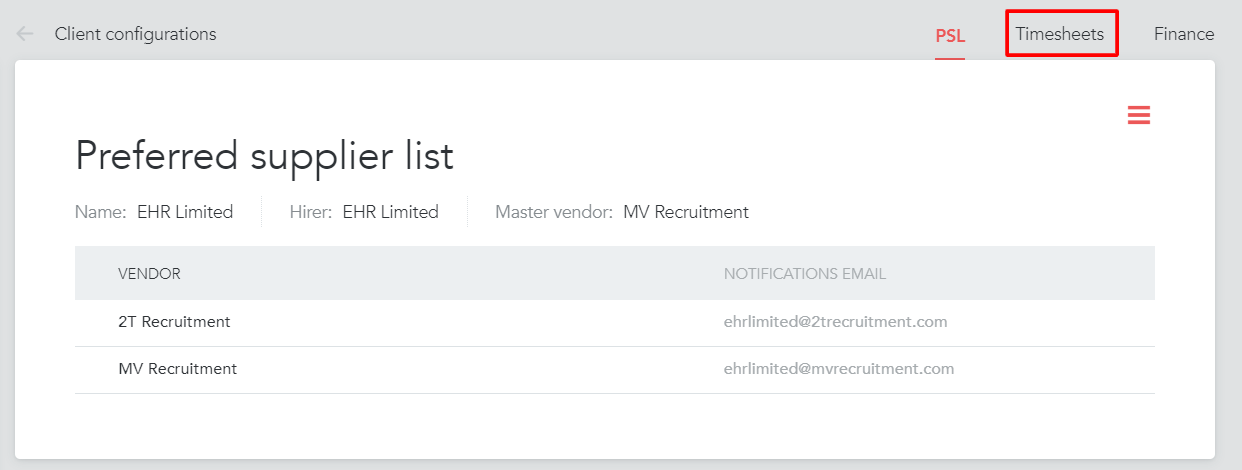
Step 7. Scroll to the bottom and you'll find worker expenses, which can be enabled or disabled.

Placement configuration
If set to true at the placement level, all timesheets for this placement will allow the creation of expense
Step 1. Log in to Engage portal
Step 2. Navigate to ‘Placements’
Step 3. Find the placement in question and click on it
Step 4. Click on the 3-bar menu in the top right-hand corner
Step 5. Click on 'Timesheets settings'
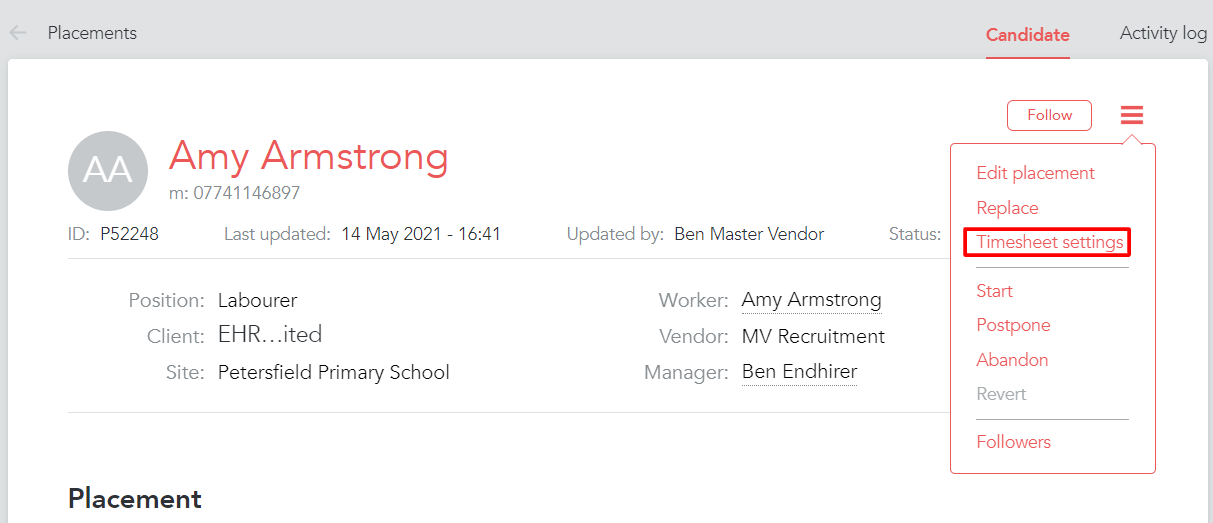
Step 6. Scroll to the bottom and you'll find worker expenses, which can be enabled or disabled
Position configuration
If set to true at the positions level, all timesheets for new placements for this specific position will allow the creation of expense
Step 1. Log in to Engage portal
Step 2. Navigate to ‘Jobs’ section
Step 3. Go to 'Positions'
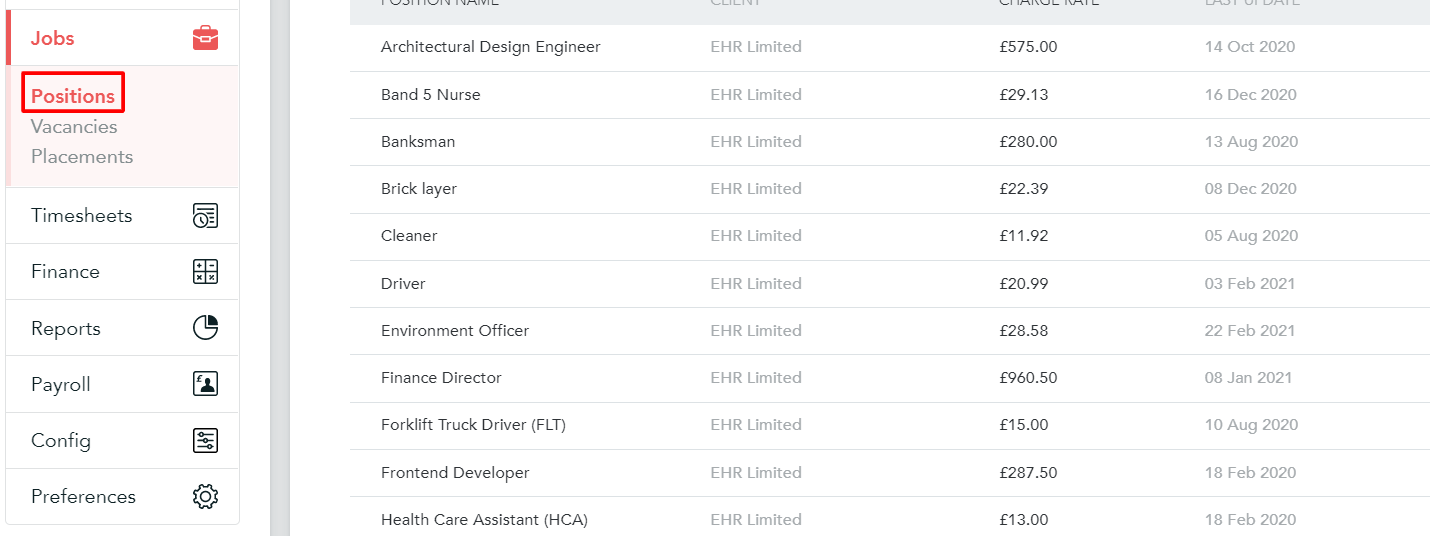
Step 4. Find the position in question
Step 5. Click on the 3-bar menu in the top right-hand corner
Step 6. Click on 'Timesheets settings'
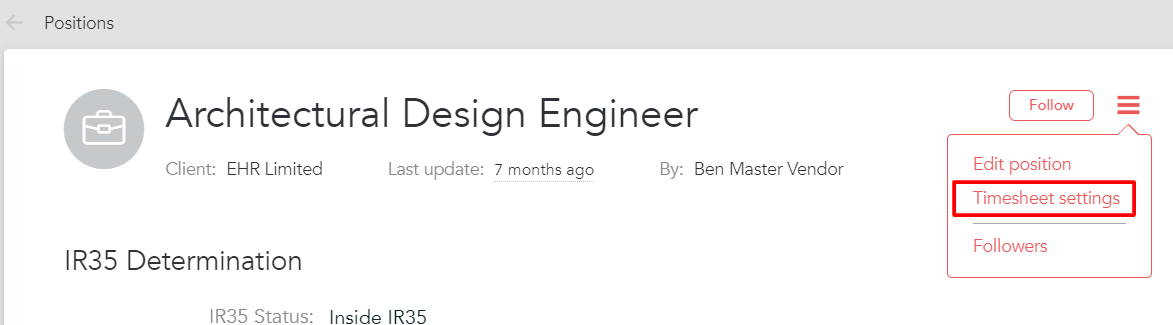
Step 7. Scroll to the bottom and you'll find worker expenses, which can be enabled or disabled