
Marking a timesheet as absent will set all of the hours worked for that week to zero. This is a useful feature for when a worker takes a week off of work.
Who can create Expenses?
At the agencies, every user apart from consultants can action it. At the end-hirer level only finance, commercial managers, and administrators will have access to this feature (you can find out more about roles and privileges here)
Step 1. Log in to Engage portal
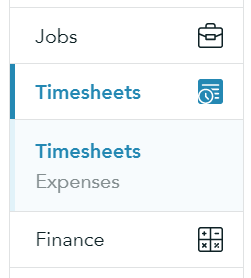
Step 2. Navigate to the 'Timesheets' section and click 'Timesheets'
Step 3. Select required timesheet and click 'View details'
Step 4. From the 3-line menu, select 'Mark as absent'
Step 5. Once done, click 'Save'
You can also filter timesheets by them marked as 'absent':
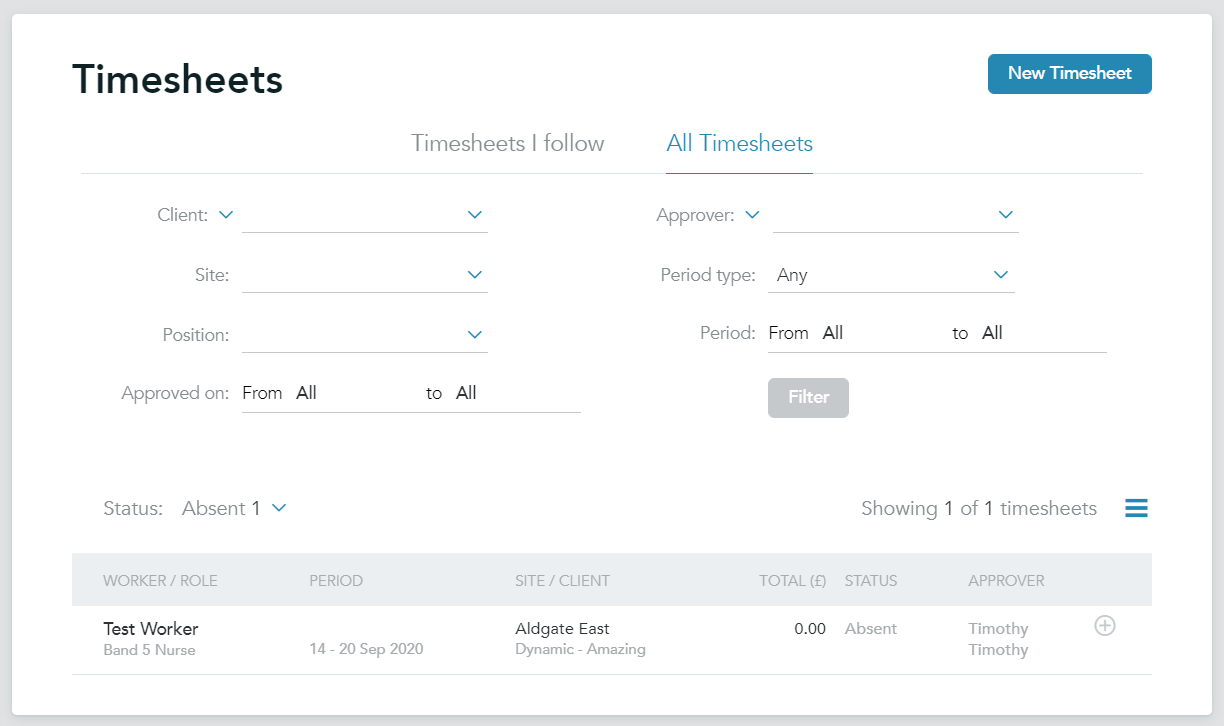
After marking a timesheet as absent, it can only be cancelled.
Quick Note!
If a timesheet is marked absent by the worker, no notifications will be sent out, however if an agency member marks a timesheet as absent, the worker will be notified of this.A guide for workers
If one of your worker's are finding it difficult to submit expenses feel free to send them this guide that outlines the steps they need to follow.