
Using the worker replacement feature
This feature gives you the ability to re-create a vacancy, using the details of the current placement, and assign a new worker to it. This is especially useful if, for example, one of your workers fell sick, went on holiday, or cannot work for a period of time for any other reason.
Who can replace workers?
Anyone at the Agency can use the replace feature while only administrators at End-Hirers have access to this feature (you can find out more about roles and privileges here)
Step 1. Locate the placement
Step 2. Click on the drop-down menu from either the preview or from inside the placement:
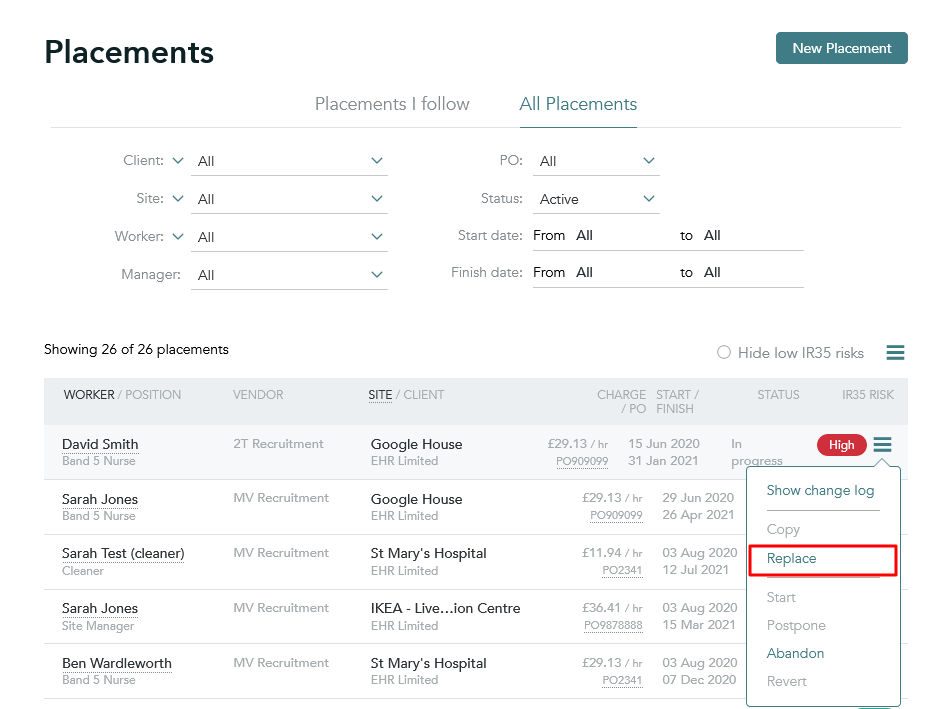
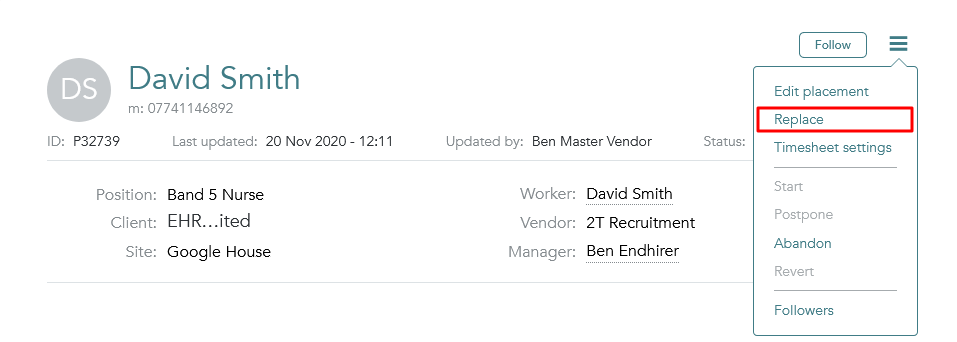
Step 3. When here you will have the option to change the end date of the existing placement, the start and end date of the replacement, and the reason for the replacement:
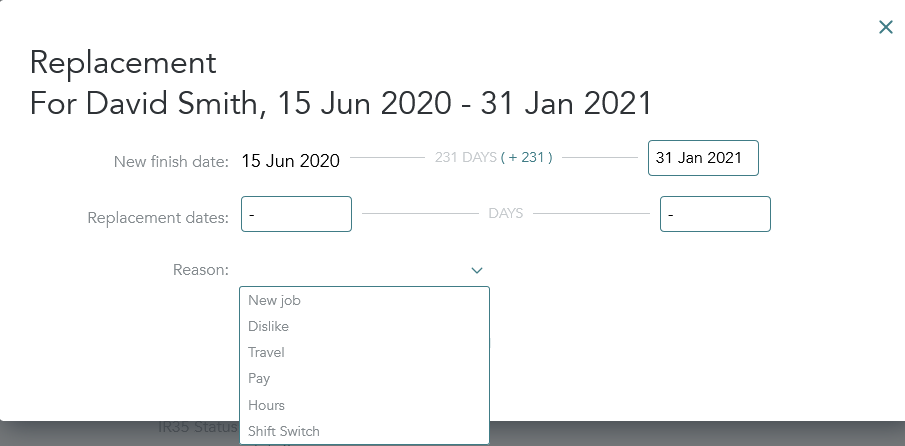
Once these options have been filled out, you will be presented with the new vacancy, identical to the previous one. From here you will need to follow the usual process of amending rates (if needed) and submitting workers.
Enabling the replacement feature
To enable this feature the context you're under will need to have the right privileges.
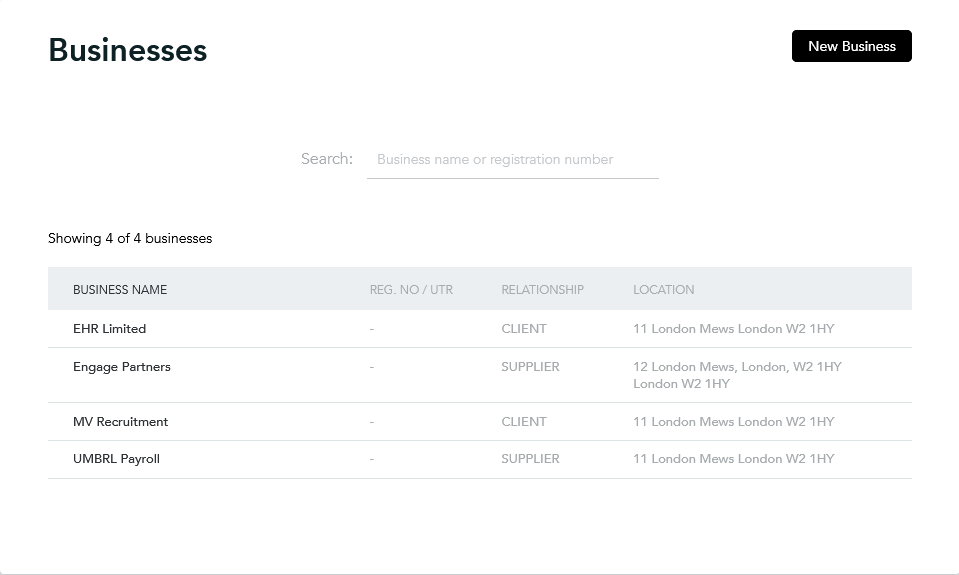
Step 1. Go to Network -> Businesses and select the client:
Step 2. Next click on client configurations:
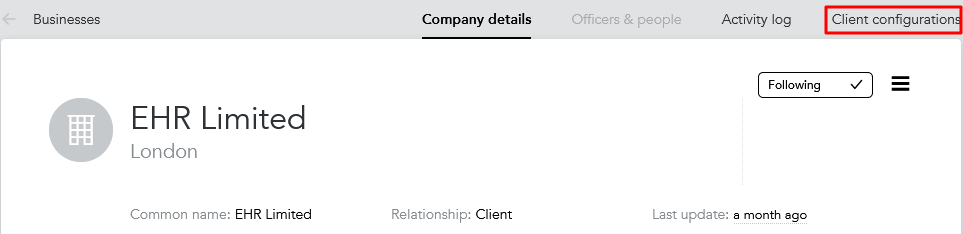
Step 3. Then click on the client (not the 3-line menu):
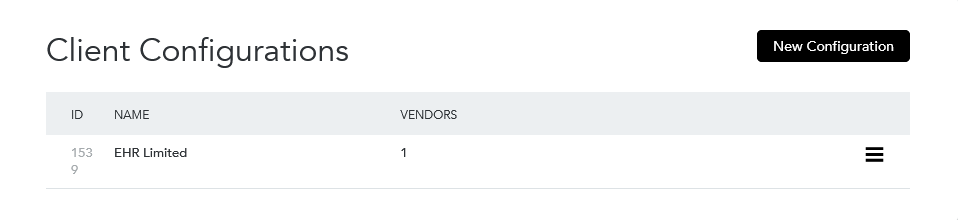
Step 4. Here you'll want to click on the 3-line menu for the desired vendor and click edit:
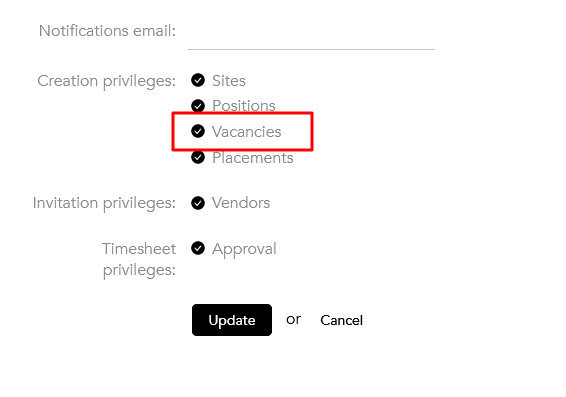
Step 5. Please click on Vacancies creation privilege, this will enable the option to create vacancies and as a result, enable the use of the replacement function.