
Configuring settings for your client/2nd tier suppliers allows you to set certain behavior on the system between your company and theirs. In this article, we will look at the options available and how they affect the system.
To add/amend the configuration, please go to:
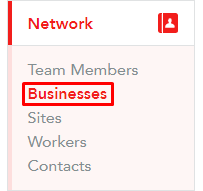
- Network -> Businesses -> select a client -> click on 'Client configuration' in the top-right if you are from an agency

- Preferences -> VMS Configurations -> click on 'Edit' from the 3-line menu by hovering over the site if you are an end-hirer

Here are the fields you would need to fill out (please see previews at the bottom):
- Name - this is the name of End-hirer, you can either use their full company name or any abbreviation you desire
- Hirer - select the new end-hirer from the dropdown menu
- Master Vendor - an agency that performs Master Vendor activities
- Invoice entity - this will be pre-filled to Master Vendor by default. Please change it depending on the client's requirement - here are 2 scenarios to consider whether you need to amend it:
-
Invoicing Scenario 1: if an agency is the Master Vendor (and MSP for invoicing purposes) and they are responsible for invoicing the end-hirer on behalf of the 2nd tier suppliers, the invoice entity should remain as the Master Vendor agency
-
Invoicing Scenario 2: if the end-hirer should receive invoices from the 2nd Tier supplier, the Invoice Entity should be changed to the End-Hirer
-
- Purchase orders - choose whether POs are required for vacancy creation or timesheet approval
Please note!
If you make POs required for timesheet approval but forget to add it on the placement, timesheet approvers will not be able to approve timesheets for that placement until a correct PO is added either from the placement or through the timesheet approval process. If the PO is added at the timesheet approval stage, the user will be asked if the PO is to be applied at the placement for all subsequent timesheets. If the user clicks yes, then the PO will be applied at the placement level and therefore will apply to all future timesheets for that placement.
- Transparency - set to 'Hidden' if mark-up should not be shown
- Vendor invitations - there are 3 settings to choose from:
- Invite all vendors - all vendors will be invited automatically
- Invite vendors manually - this setting lets you control who is invited on each vacancy
- Invite vendor groups - you can select a group of vendors
- Rate defaults - choose the rate defaults you would like to be displayed against rates in vacancies (they can be amended at the vacancy creation level if required). If unknown, rate defaults are:
- Pay type: PAYE
- Rate type: Hourly
- Holiday Pay: 12.07%
- Employer cost: 10.5%
- IR35 determination - you can enable IR35 Risk Management tool at this stage (here is the guide on how our IR35 tool works)