
Registering a worker on Engage only takes a few minutes. Once completed, depending on the product you've purchased, you will have all of the documentation, payment information and details of the worker on file and in one place.
Who can register workers?
Anyone at the Agency can complete registrations while only administrators at End-Hirers have access to this feature (you can find out more about roles and privileges here)
Step 1. Log in to Engage portal
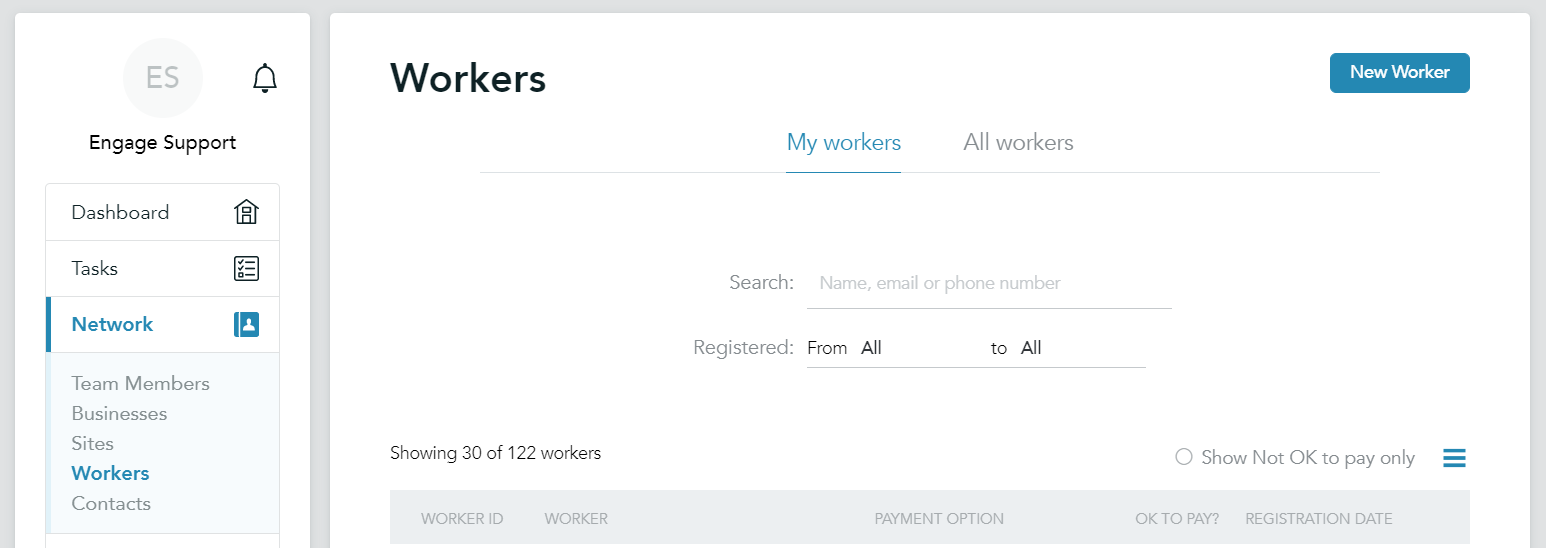
Step 2. Navigate to 'Network' and 'Workers'
Step 3. Click on 'New Worker' in the top right
Step 4. If known, fill out worker's details:
Mandatory: Mobile no, First name and Worker ID
If you have a CRM or accounting system, use the ID from there
Optional: Email, Title, Surname, Address, Postcode, Date of birth, gender, NI number (can also be filled out by the worker)
If you are not using our Back Office and/or Compliance please skip to Step 7
Step 5. You can upload workers 'Right to work' documents at this stage, otherwise, they would be requested to do it by themselves
A guide for workers
If one of your worker's find it difficult to upload documents feel free to send them this guide that outlines the steps they need to follow
Step 6. Set up the engagement type
- This specifies whether the worker is working via an Employment business (or umbrella company), self-employed via the worker’s Ltd company, or PAYE
- Although it's not required, you might find it helpful to set the Engagement type at this stage, so that the worker can get started providing the necessary documents
Step 7. Click 'register worker' and choose how you would like the worker to be notified of the registration
Please note!
- When you add a worker to Engage they will automatically receive an invitation to register onto the platform
- Should the worker not receive the text or email you sent, you can hover over the worker name in the list view and either 'send invite’ again or ‘send reminder’
- Registering and completing compliance with a worker will not automatically add them to the vacancy
- When you invite a worker, you'll automatically be added as a follower for them. They will appear in your 'My workers' tab in the Workers section
- If you get an error while creating a worker profile by using their email, it means the worker with these details already exists. In this case, you would need to reach out to our Tech Support, where the team could make necessary adjustments