
Whether you need to amend any details on the invoice, realised an incorrect rate was applied or wrong hours approved, you can easily raise a credit note and a new invoice following the steps below.
Who can raise credit notes?
Team members with the role of Finance Admin, Finance Controller or Administrator at the Agency can raise credit notes while only administrators at End-Hirers have access to this feature (you can find out more about roles and privileges here)
Credit notes created from approved timesheets
Step 1. Log in to Engage portal
Step 2. Navigate to the 'Finance' section
Step 3. Go to the 'Invoices' tab
Step 4. Locate the invoice in question, click on it, and then click on 'View timesheet' from the 3-line menu
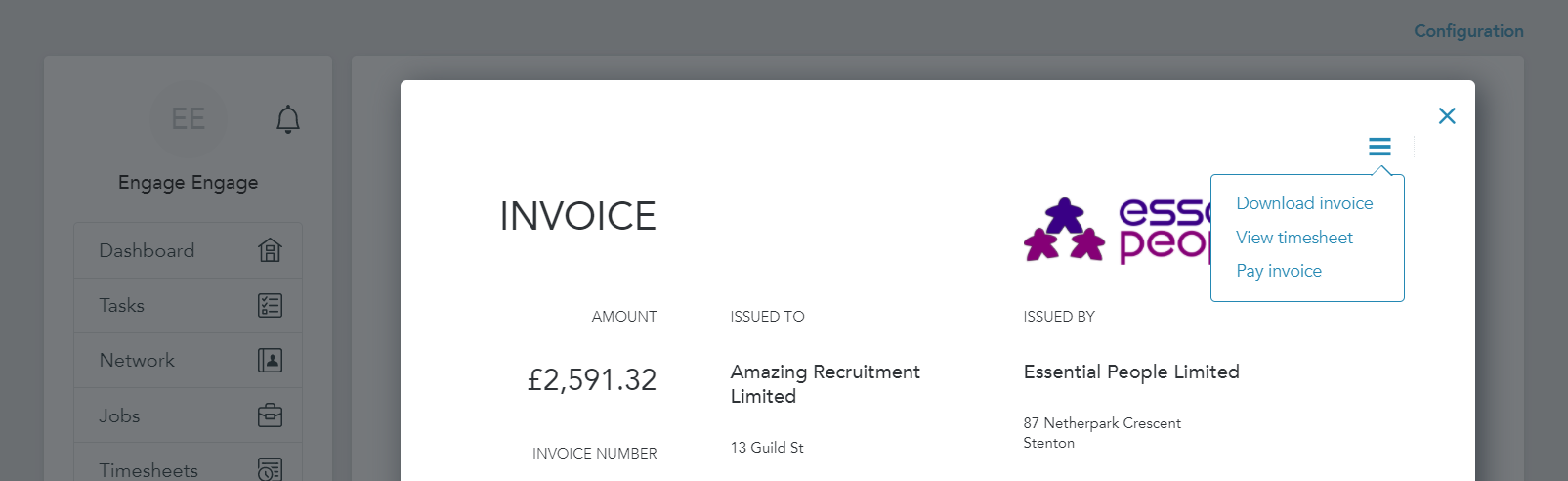
Step 5. You can cancel the timesheet by going to 3-line menu and clicking 'Cancel timesheet'
This will automatically create credit notes for any invoices linked to this timesheet - you can find them in the 'Finance' section

Step 6. To reissue the invoice, go to 'Timesheets'
Step 7. Click on 'Create timesheet' and find the worker and date range needed

Step 8. Fill it out as required and resubmit for approval:
- If you need to enter the same data for all days, save time by clicking 'Copy to lines below'
- If you need to remove hours, click 'Clear entry'
Step 9. Once approved, a new invoice will be issued depending on the invoice generation rules you have set in Finance settings
Manually created credit notes
You can also create credit notes manually, this is particularly useful in situations where an invoice has been manually created, this would result in no timesheet being attached preventing the above method from being utilised.
Step 1. Log in to Engage portal
Step 2. Navigate to the 'Finance' section
Step 3. Go to the 'Invoices' tab
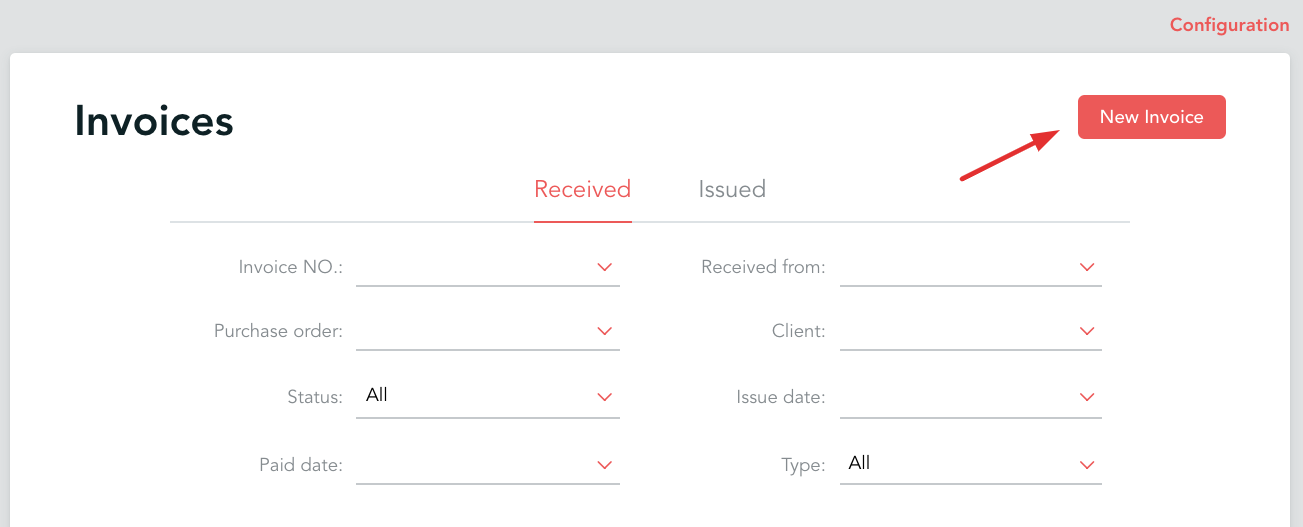
Step 4. Head to the invoice section and click on 'New invoice'
Step 5. Make sure you select 'Credit note' in the Document type section and fill out details as required (these should normally match the invoice you are creating credit note for)
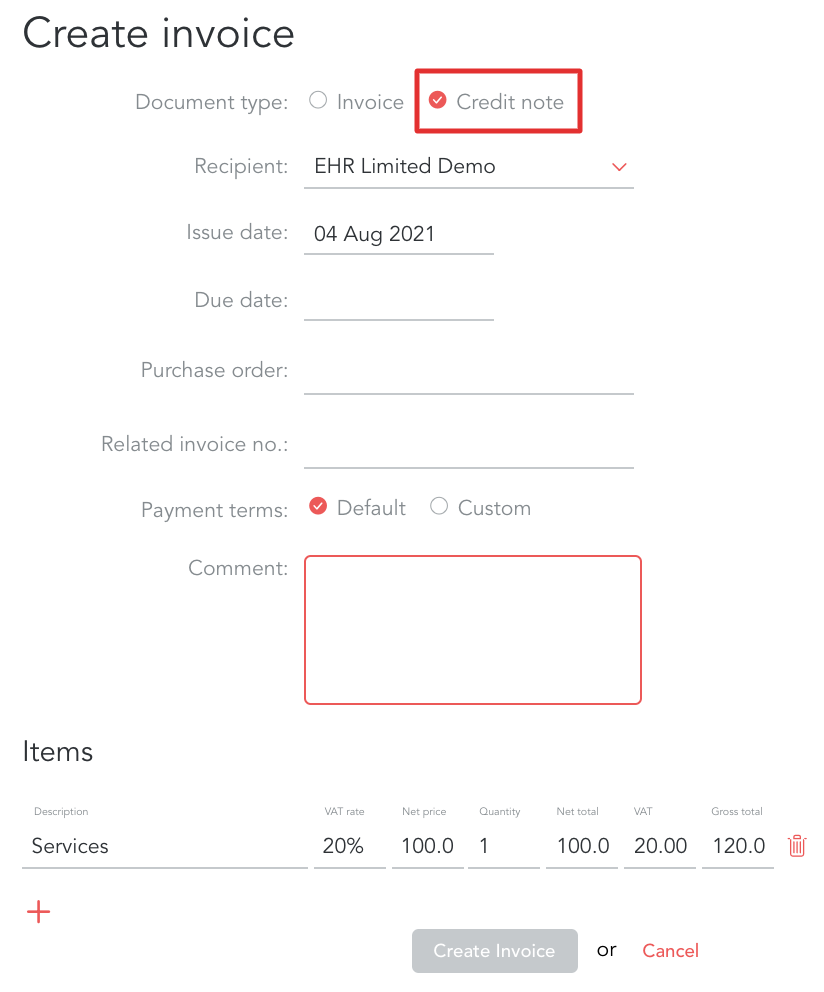
Step 6. Once filled out, don't forget to click 'Create invoice'